
Navigate the Dashboard
Learn how to find repairs quickly, track recent activity, and stay on top of team notifications from the Home dashboard.
View your locations and recent repairs
- Click Home in the sidebar (the house icon). The dashboard shows two main sections:
- Locations table — Lists all your repair shop locations with their Location ID, address, and active repair count.
-
Last Viewed Repairs — Shows the repairs you've recently opened, with the customer name, RO number, vehicle, status, and total amount.
[Screenshot: Home dashboard showing locations table and Last Viewed Repairs panel]
Search for a repair
- Click the search bar at the top of any page. It reads: "Search by VIN, RO, Customer Name, Make/Model, Location."
-
Type any of these values — the search accepts partial matches. Results appear as you type.
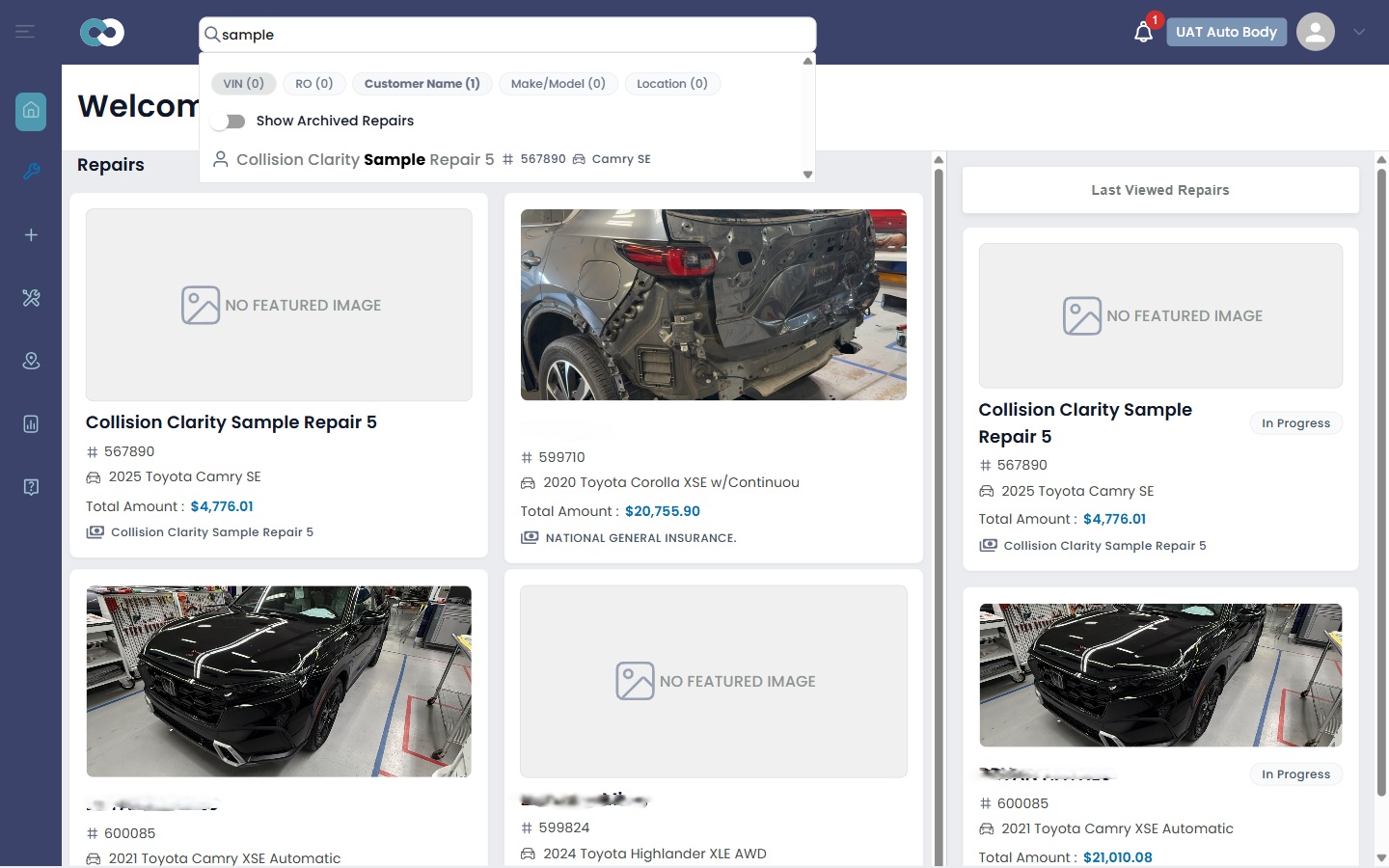
- Click a result to open that repair's detail page.
Check notifications
-
Click the bell icon in the top-right corner of the header.
You'll see two types of notifications:
- Mentions — When a team member @mentions you in a repair comment.
- Inbox responses — Messages from external parties (insurers, claimants).
- Click any notification to navigate directly to the relevant repair or message.
Tip: The notification bell shows a badge count for unread items. Mentions and inbox responses are tracked separately.
What's next?
If you're an Organization Leader or admin, learn how to set up your organization — add locations, invite team members, and assign roles. If you're a Repair Planner, skip ahead to create your first portal.