
Set Up the CCC Secure Share Integration
Before CCC ONE repairs can appear in the Create Portal page in Collision Clarity, your CCC ONE admin must connect Collision Clarity through the CCC Secure Share Marketplace.
Required: You must have CCC ONE administrator permissions. If you do not see CCC Secure Share in your CCC ONE settings, contact your CCC ONE administrator.
Step 1: Navigate to CCC Secure Share Settings
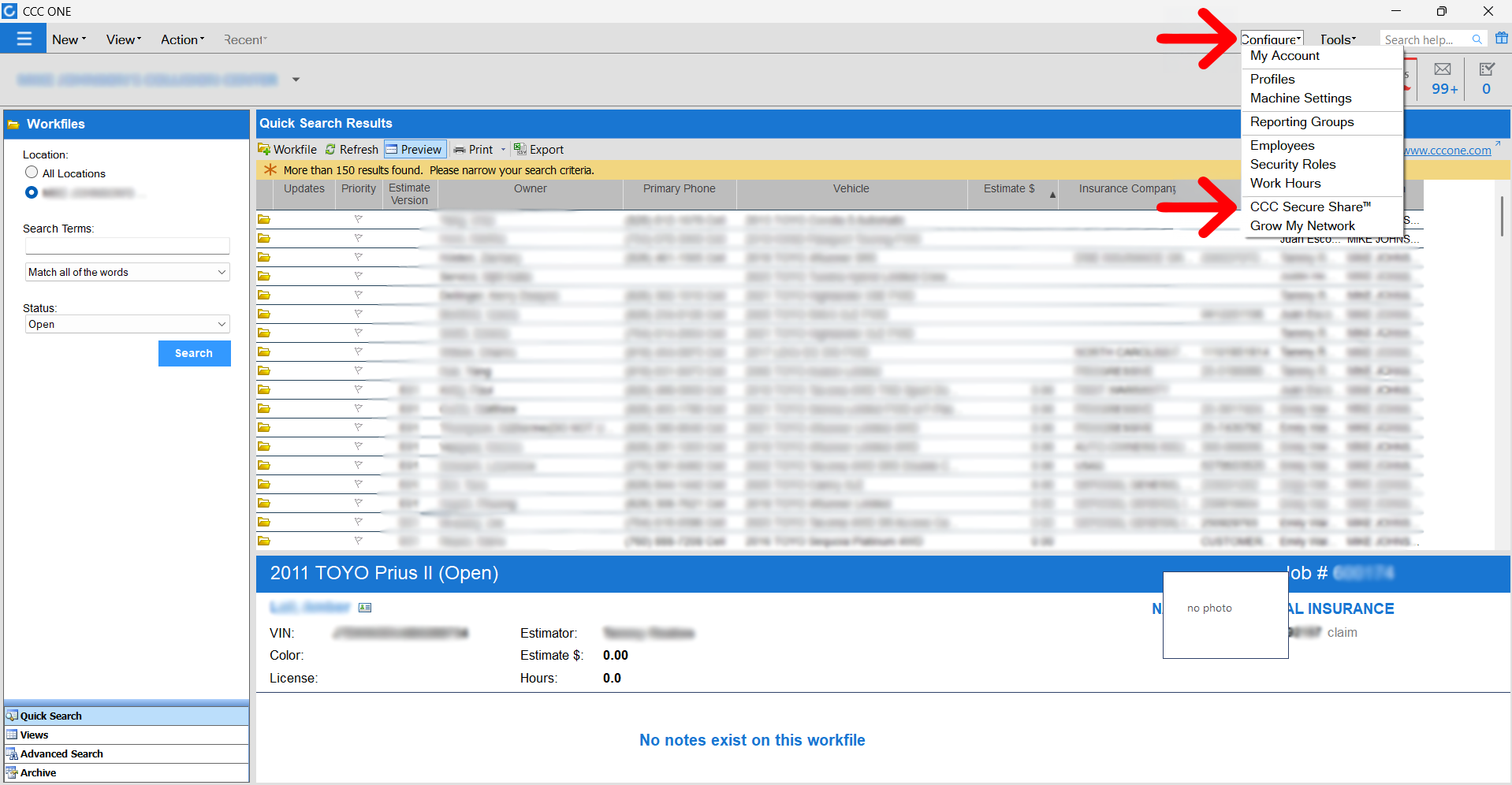
If you use CCC ONE Desktop
- Click Configure in the upper right-hand menu.
- Select CCC Secure Share from the menu.
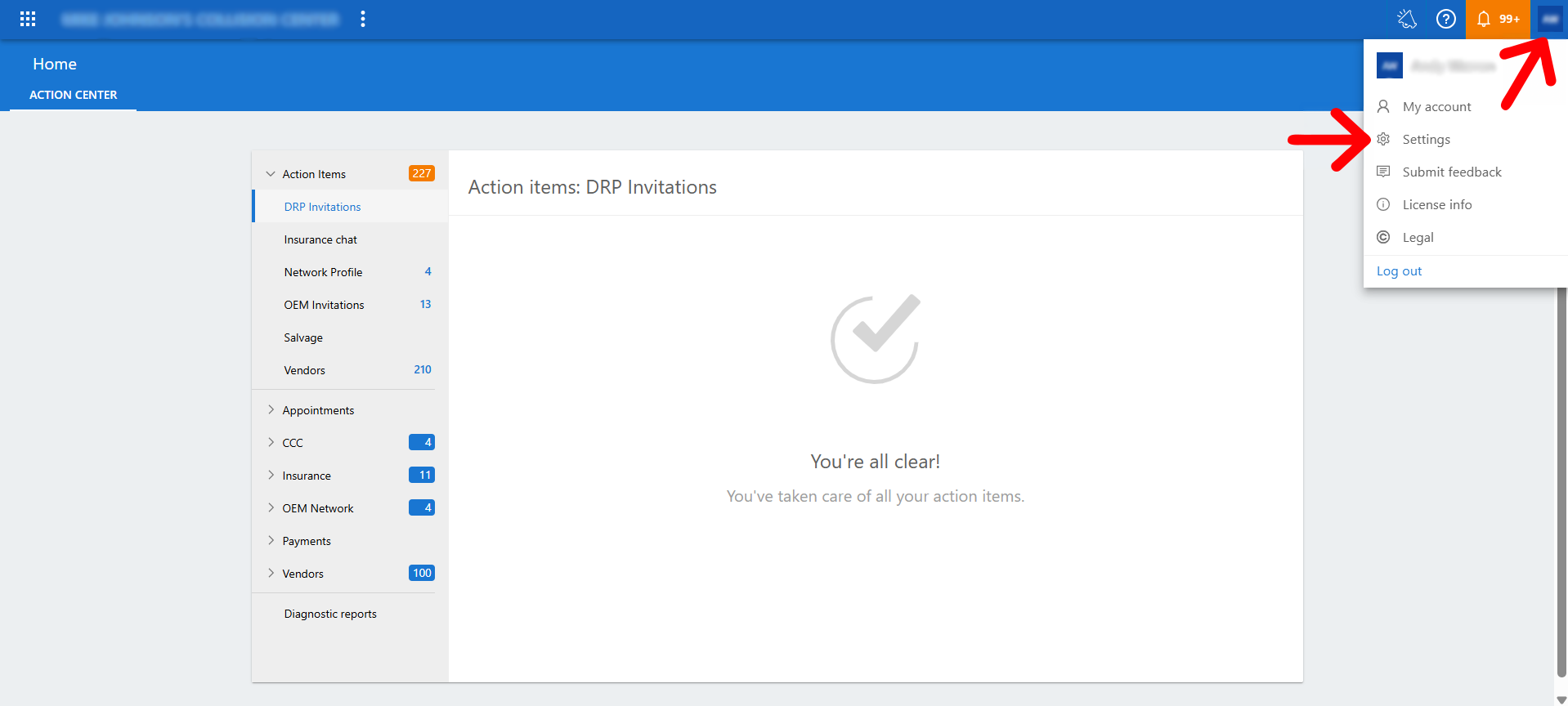
If you use CCC ONE Web
- Click your user initials in the upper right-hand corner.
- Select Settings to open the settings dashboard.
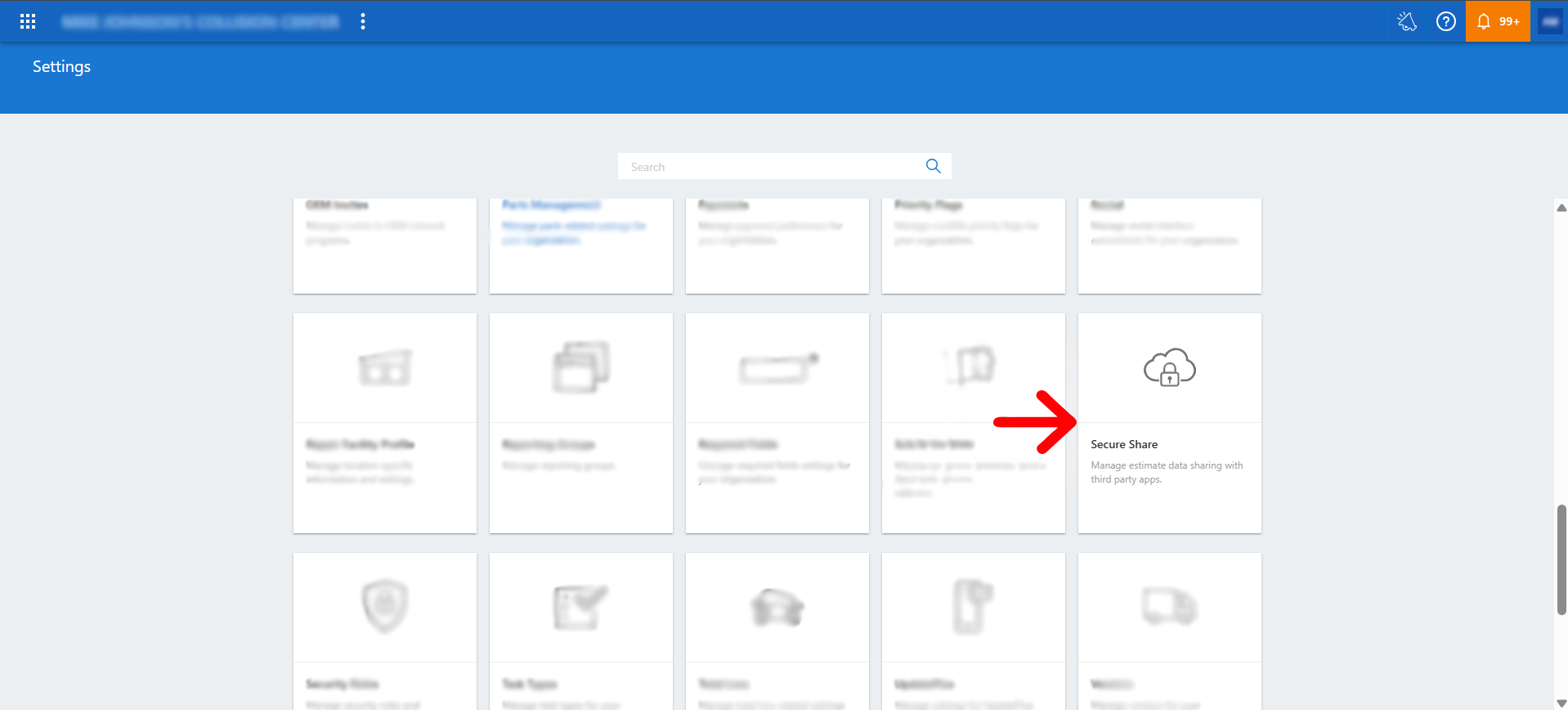
- Navigate to the Secure Share settings option to open the Secure Share page.
Step 2: Locate Collision Clarity in the Marketplace
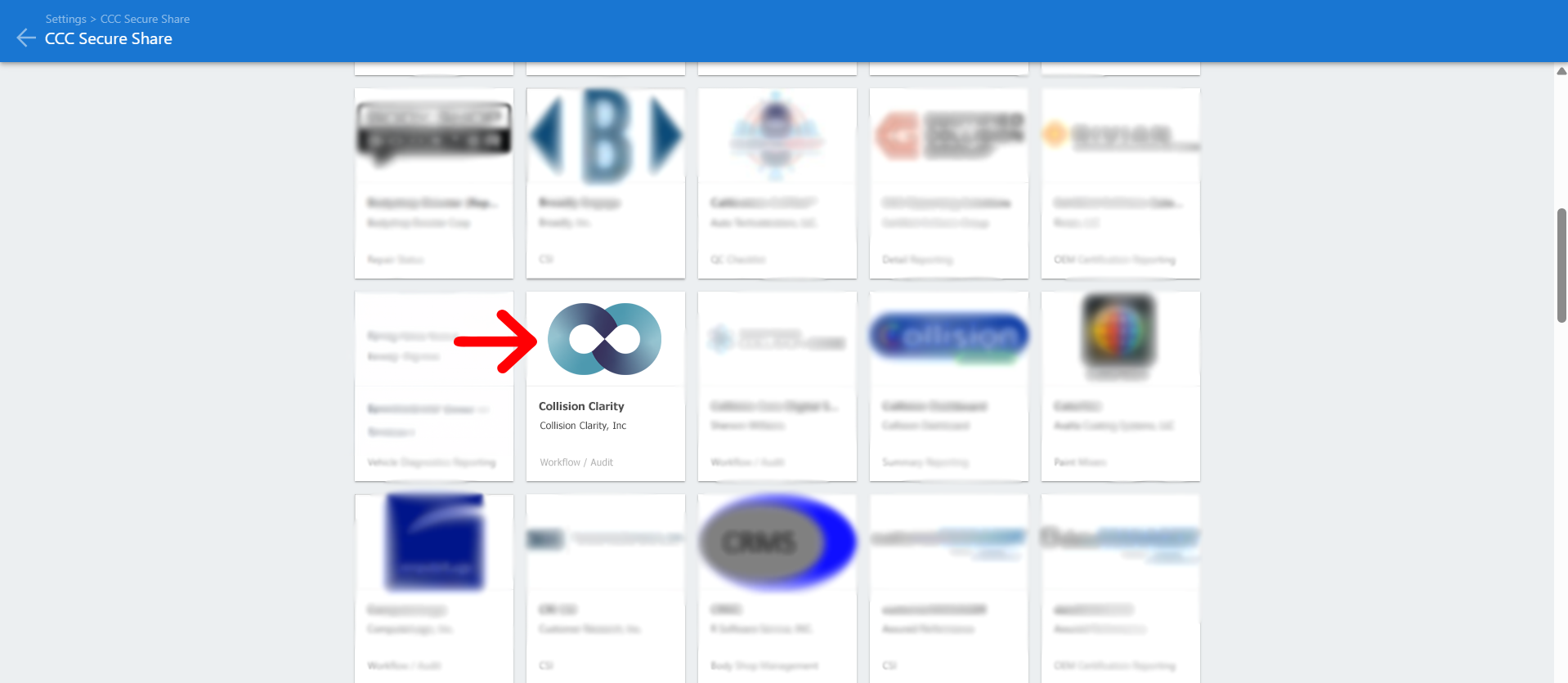
- In the Secure Share marketplace, search for and select Collision Clarity.
Step 3: Add the Application
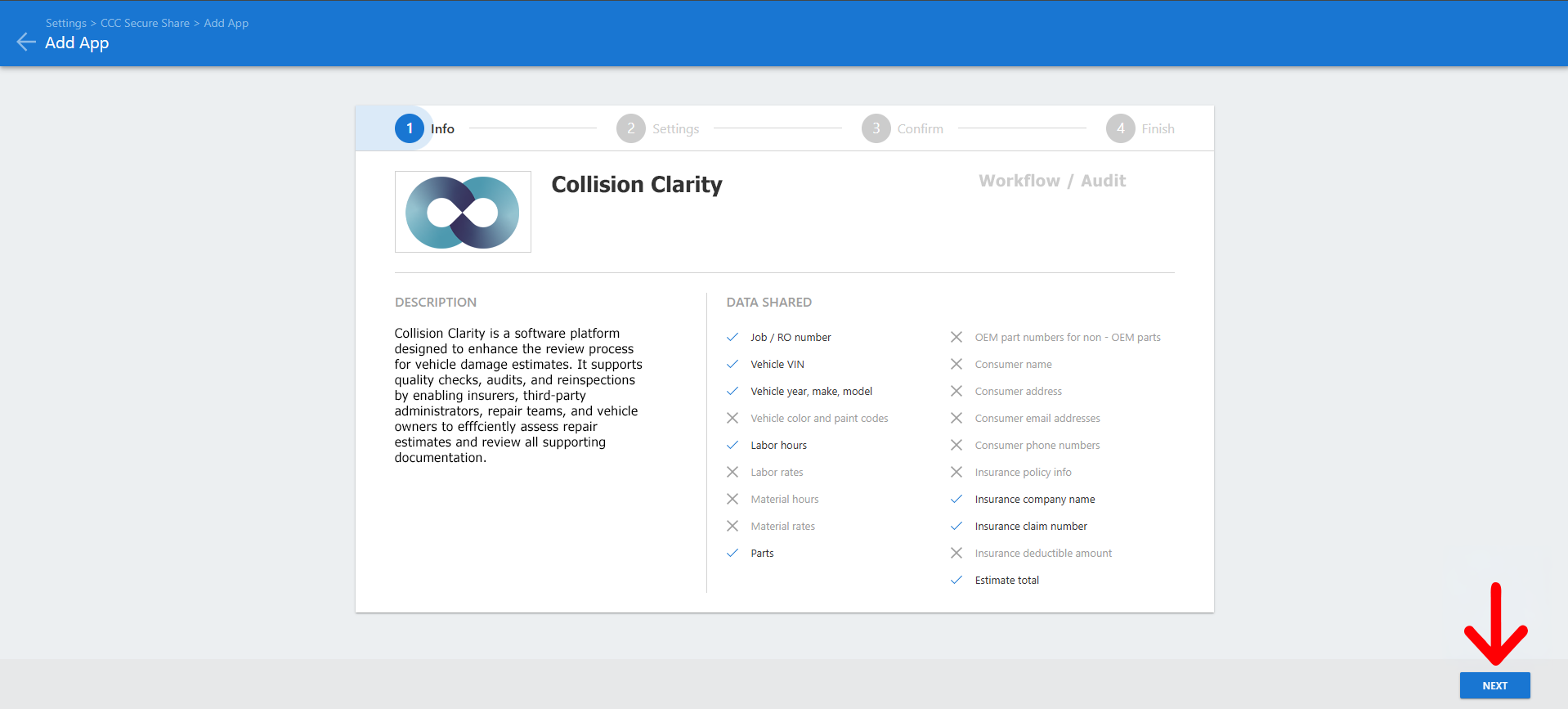
- In the Add App screen (Stage 1: Info), click Next to continue.
Step 4: Confirm App Details
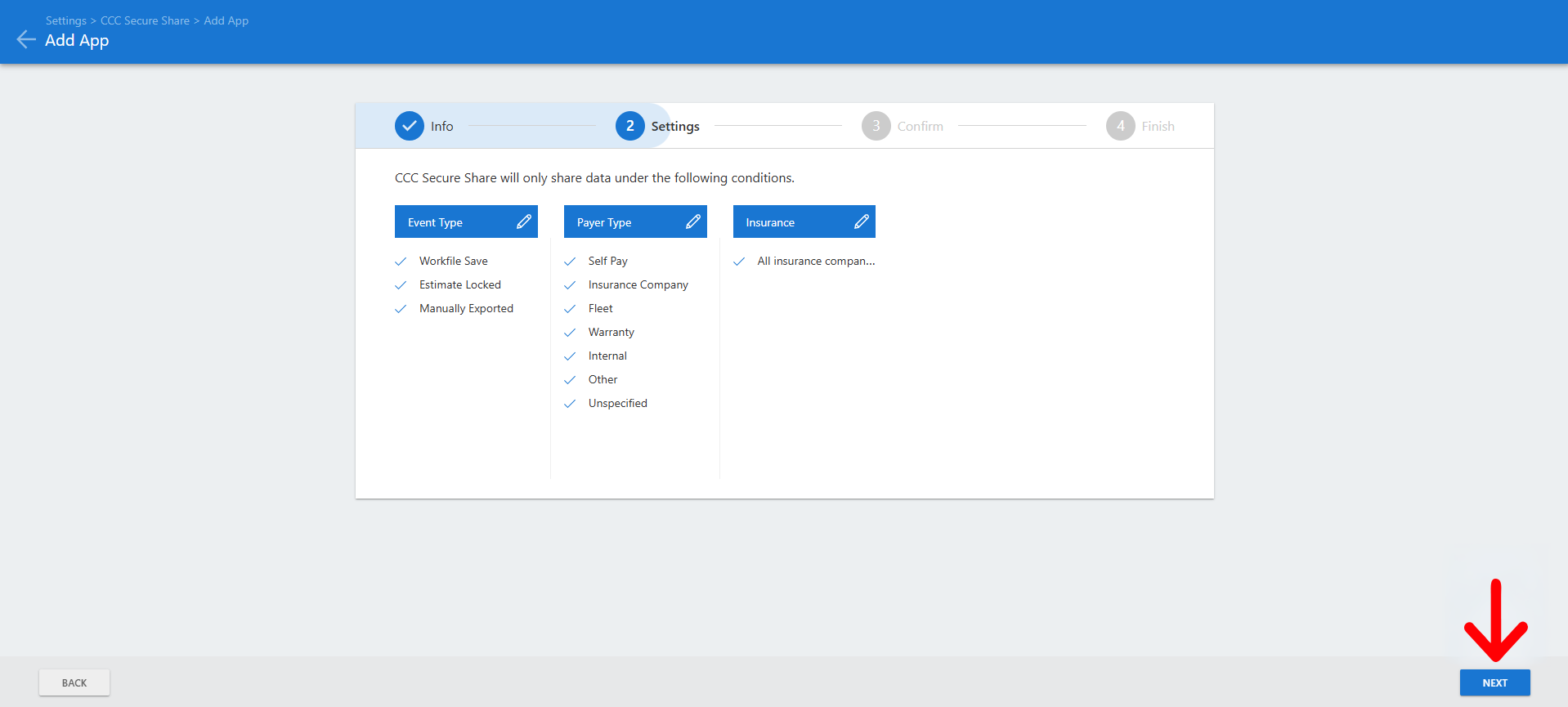
- In the Add App screen (Stage 2: Settings), review the conditions under which CCC Secure Share will share data (Event Type, Payer Type, Insurance) and click Next to proceed.
Step 5: Enable the Application
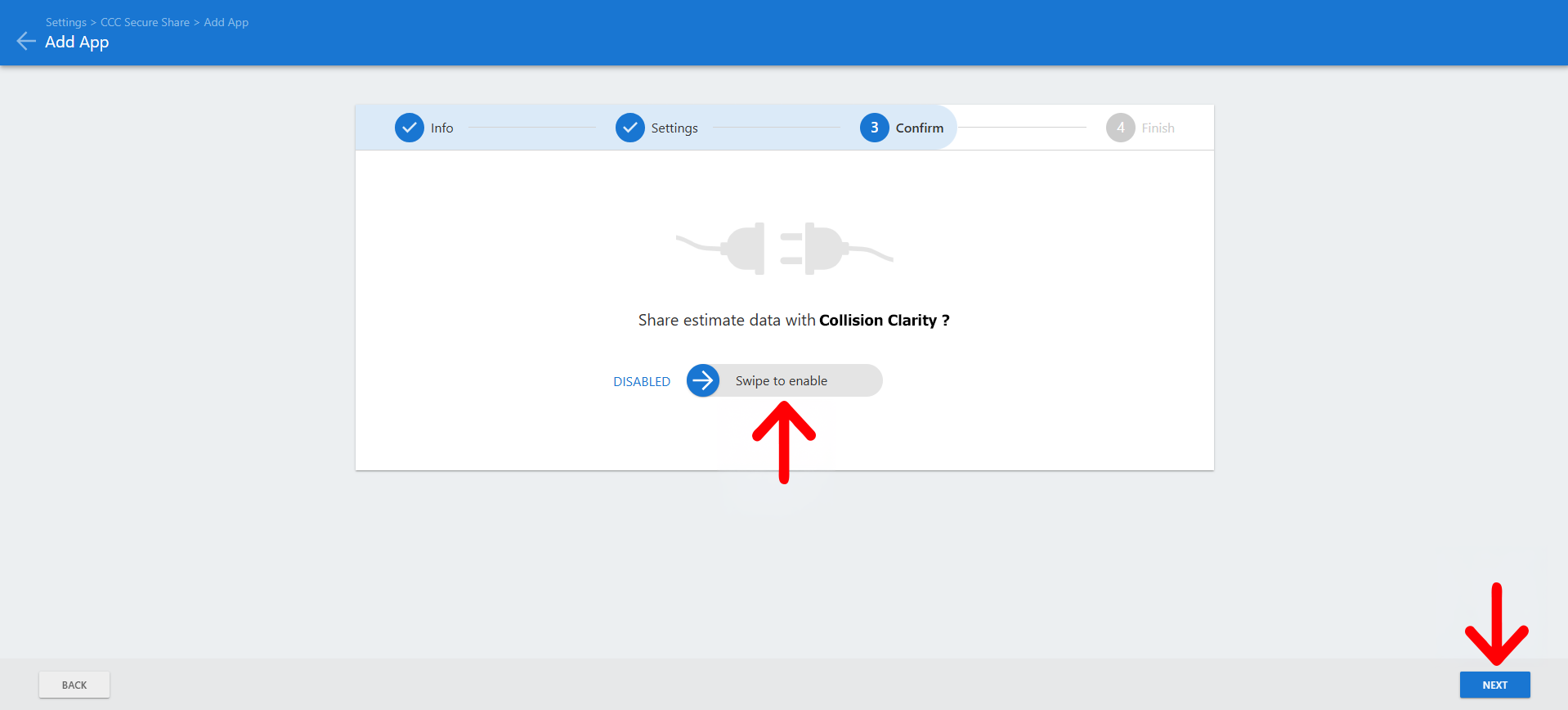
- In the Add App screen (Stage 3: Confirm), toggle the swipe switch to enable the application, then click Next.
Step 6: Complete the Setup
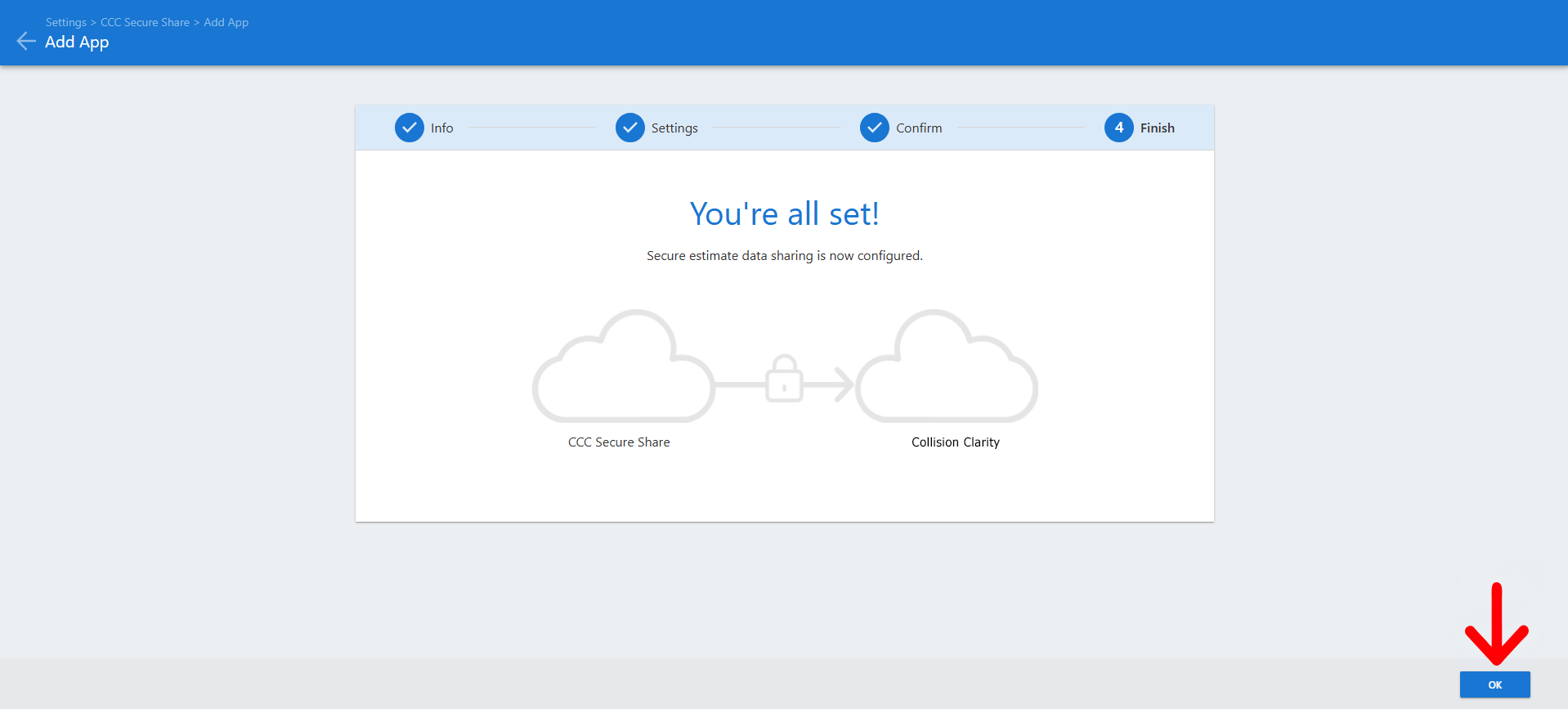
- In the Add App screen (Stage 4: Finish), select OK to complete the process.
Important: Your CCC ONE setup is now complete, but the integration is not fully active until the Collision Clarity team approves your registration request.
Please allow up to one business day for approval.
If you need the request expedited, contact:
help@collisionclarity.com
Please allow up to one business day for approval.
If you need the request expedited, contact:
help@collisionclarity.com
What's next?
Once your registration is approved, repair plans exported from CCC ONE will begin appearing in the Create Portal page in Collision Clarity.
Troubleshooting
I do not see CCC Secure Share in CCC ONE
You may not have CCC ONE administrator permissions. Contact your CCC ONE admin for access.
I completed setup, but repairs are not showing in Collision Clarity
Confirm that:
- Collision Clarity has approved your registration request.
- The repair has been exported/shared from CCC ONE.
- You are checking the Create Portal page in Collision Clarity.
- You allowed enough time for the data to sync.
If the repair still does not appear, contact help@collisionclarity.com and include your shop name, repair order number, and any screenshots that show the CCC Secure Share setup is complete.