
Share a Repair Externally
Share an approved repair by sending selected documentation, access to the full repair portal, or both.
Steps to Share a Repair
Step 1: Open the Share Page
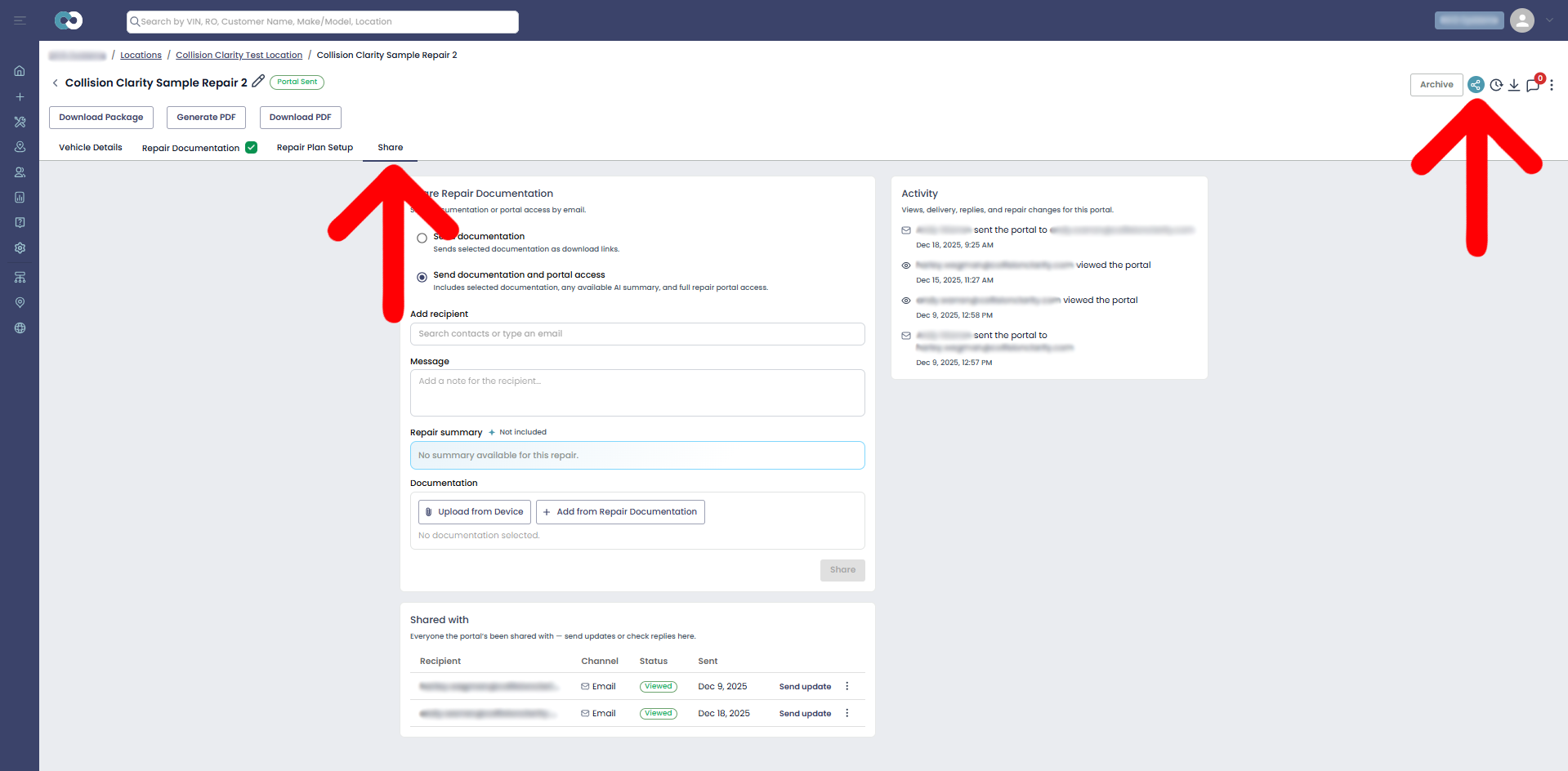
Open the repair and select the Share tab.
You can also select the Share icon in the upper-right corner.
The page displays Share Repair Documentation on the left and Activity on the right.
Step 2: Choose What to Share
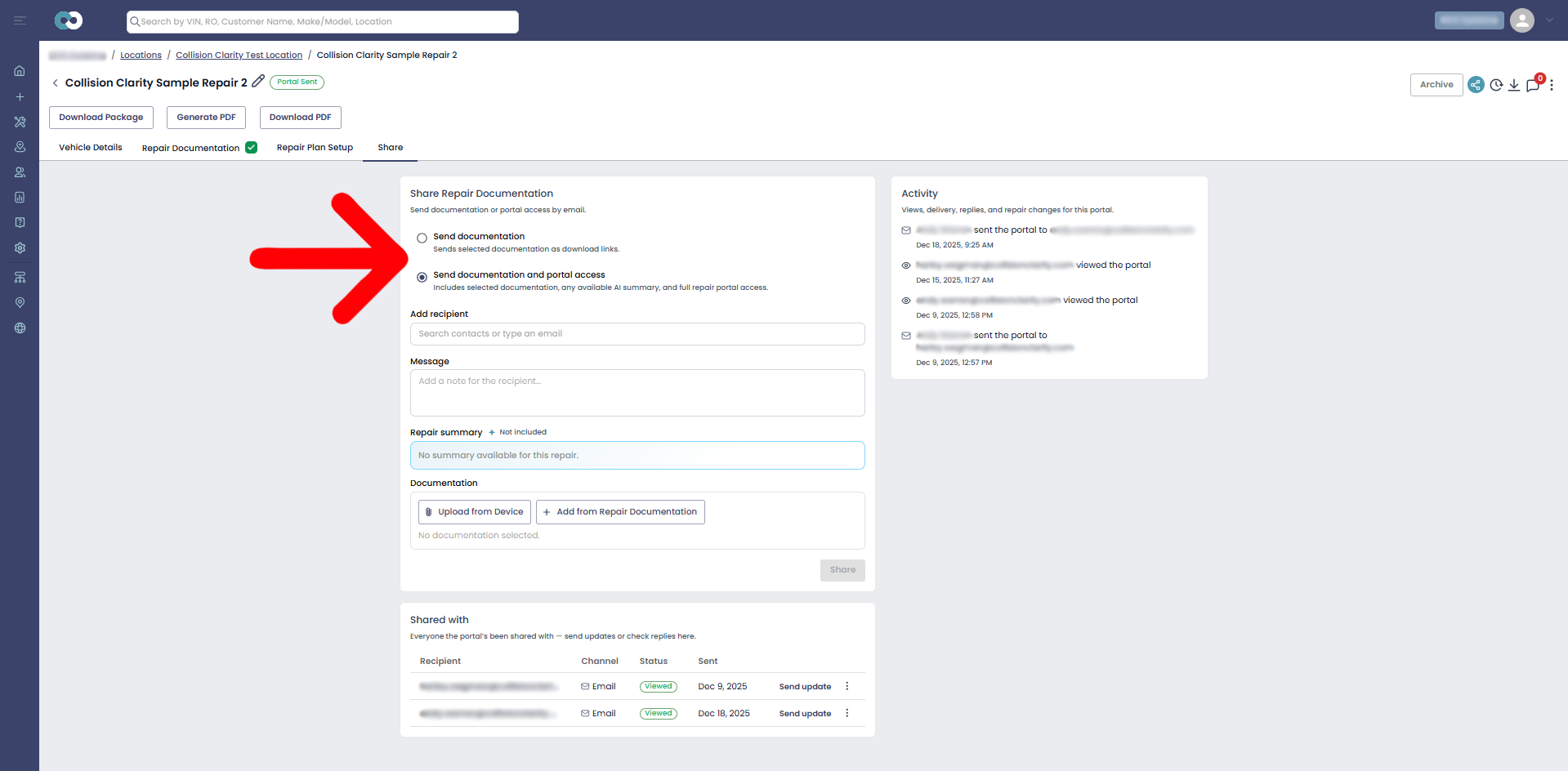
Select one of the following options:
- Send documentation: Sends selected documentation as downloadable links without providing access to the full repair portal.
- Send documentation and portal access: Sends selected documentation and provides access to the full repair portal. Any available AI-generated repair summary is also included.
Step 3: Add the Recipient
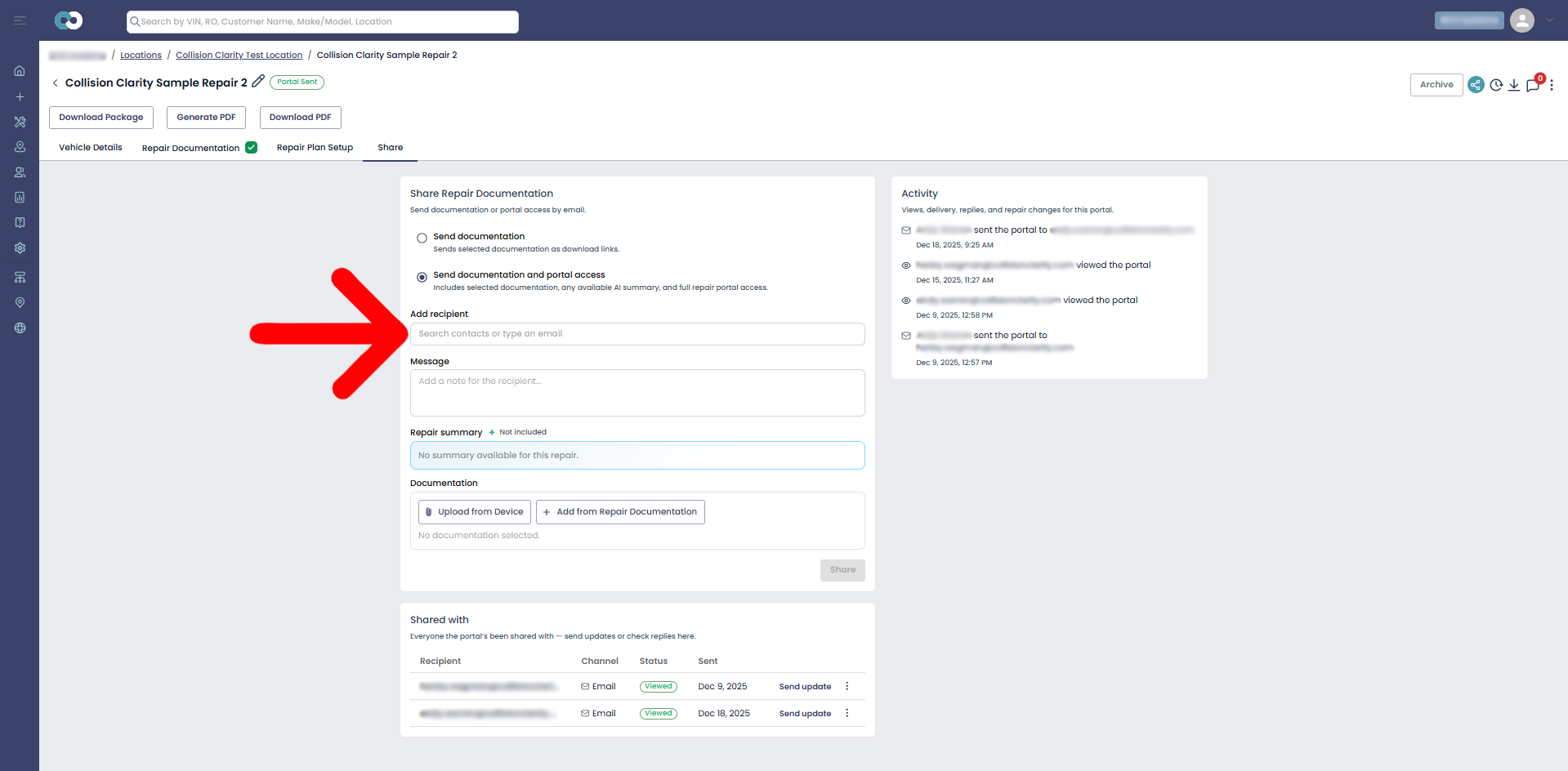
In the Add recipient field, search for an existing contact or enter the recipient’s email address.
Step 4: Add an Optional Message
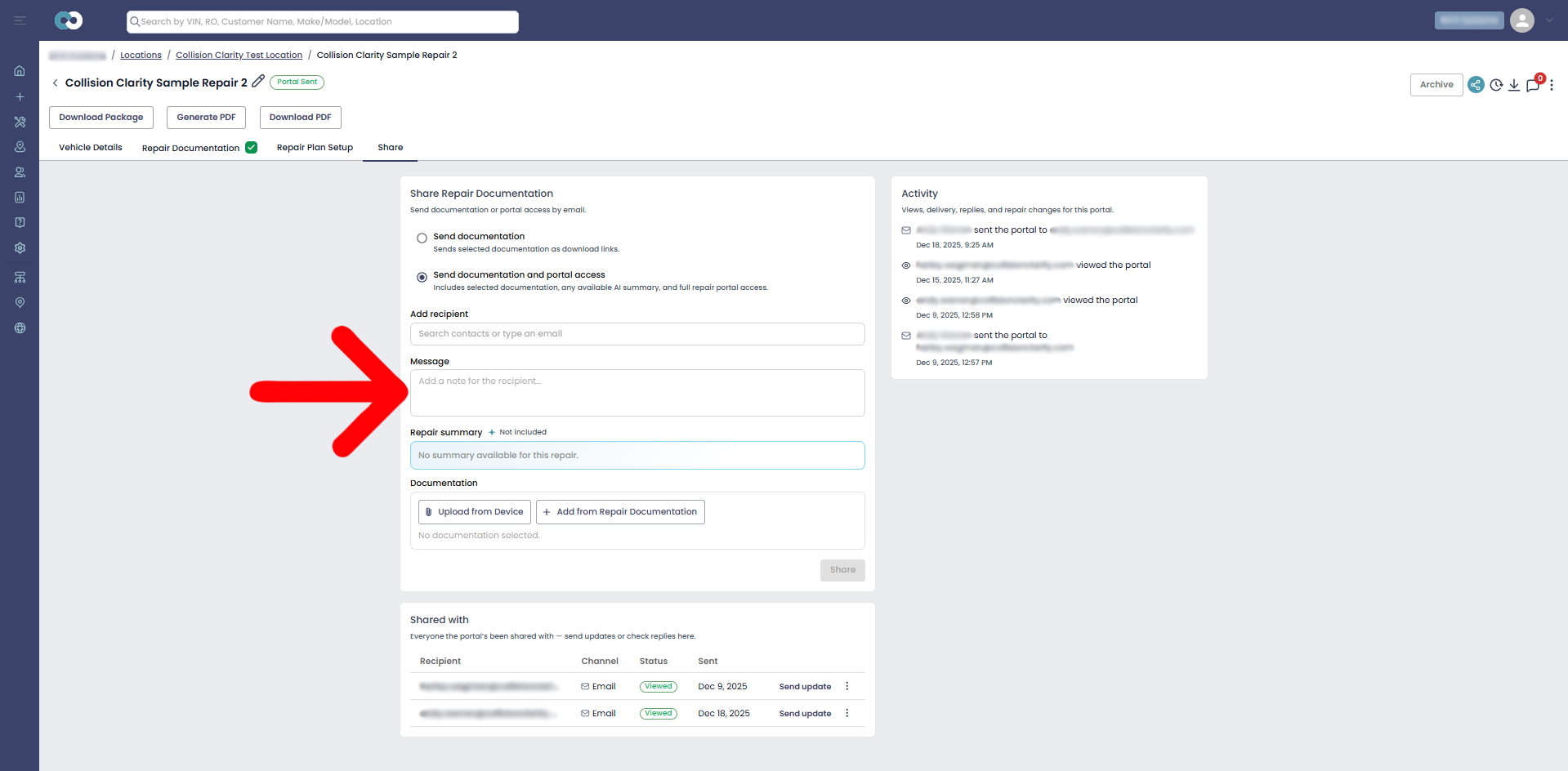
Enter a message for the recipient in the Message field, if needed.
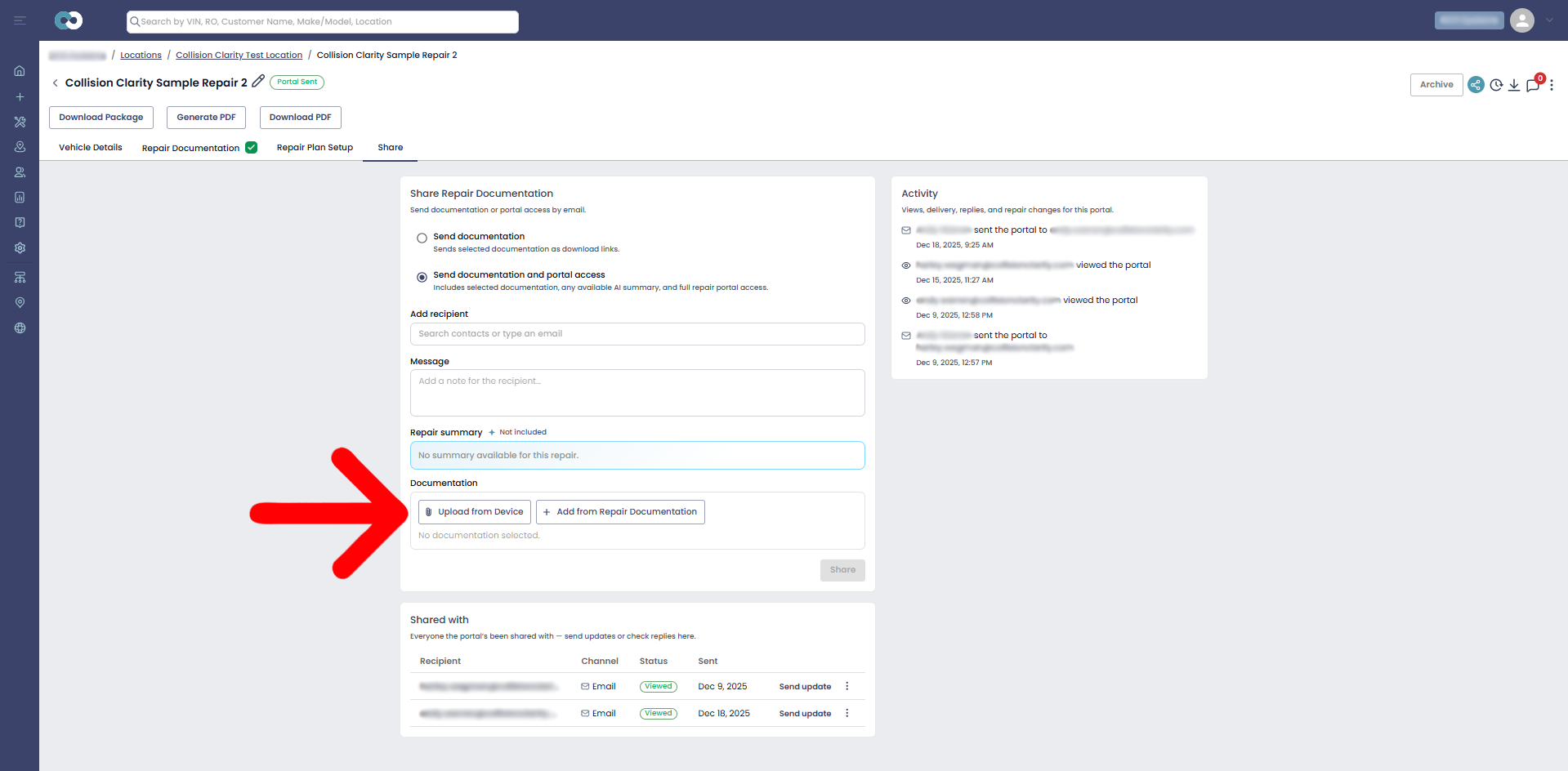
Step 5: Add Documentation
In the Documentation section, add the files you want to share using either of the following options:
- Select Upload from Device to attach a file stored on your device.
- Select Add from Repair Documentation to choose documentation already uploaded to the repair.
Step 6: Share the Repair
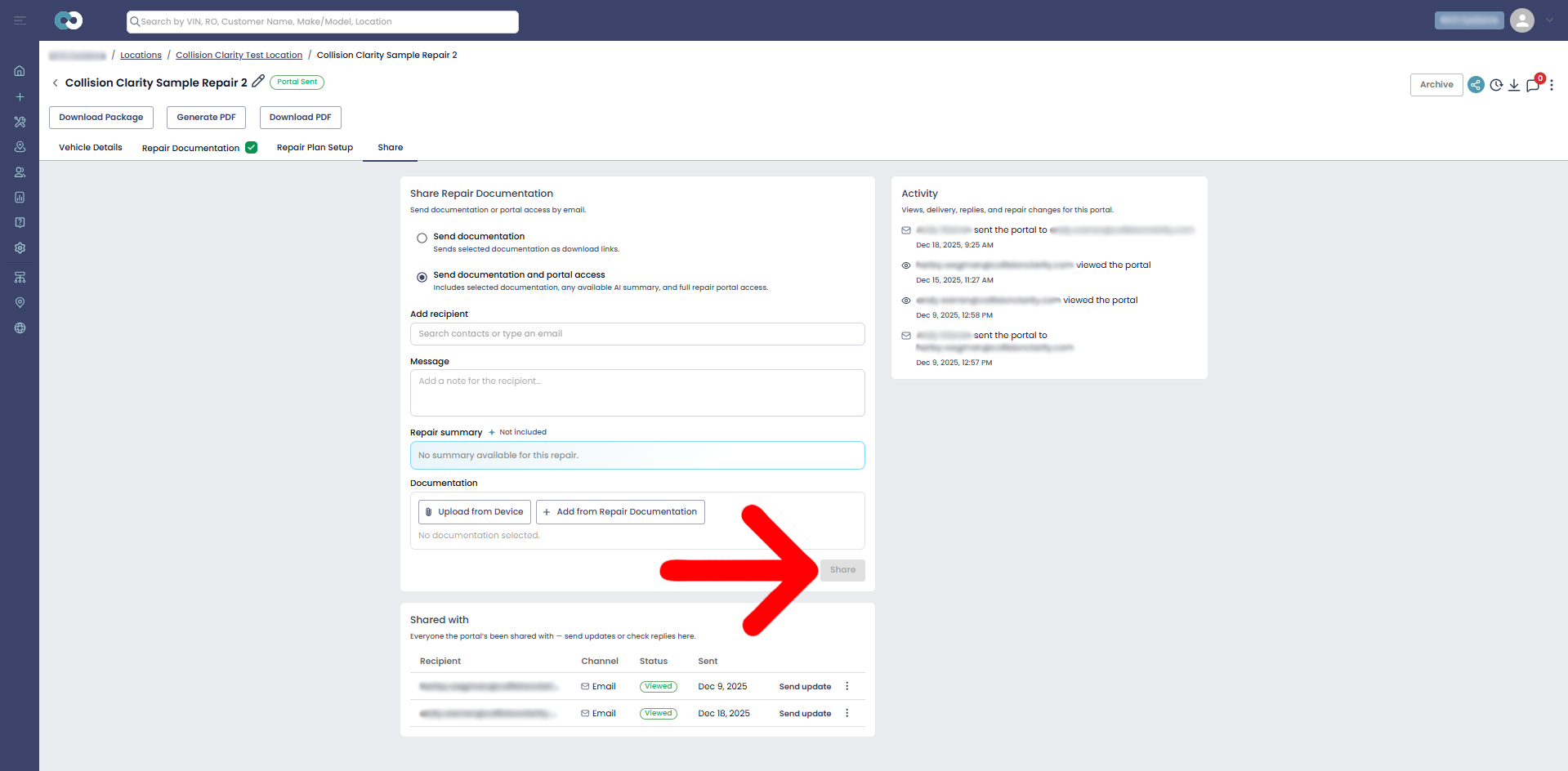
Review the recipient, sharing option, message, and selected documentation.
Select Share in the lower-right corner.
The recipient will receive an email containing secure links to the selected documentation. If Send documentation and portal access was selected, the email will also provide access to the full repair portal.
Manage Existing Shares
The Shared with section below Share Repair Documentation displays everyone with whom the repair has been shared. It includes each recipient’s:
- Email address
- Delivery channel
- Current status
- Date sent
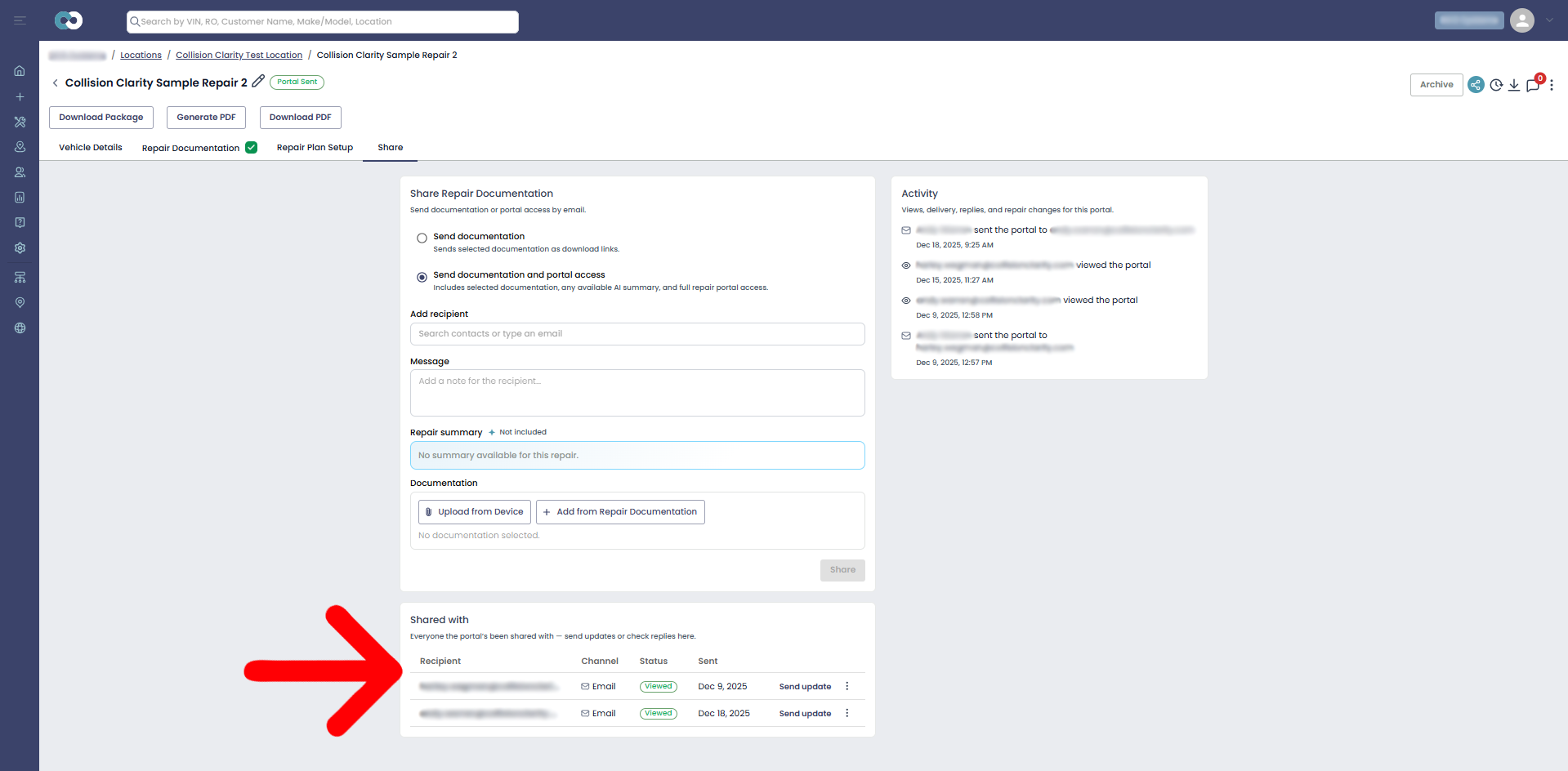
Select Send update to email the recipient an updated link.
Use the three-dot menu next to a recipient to copy their share link or revoke their access.
Review Sharing Activity
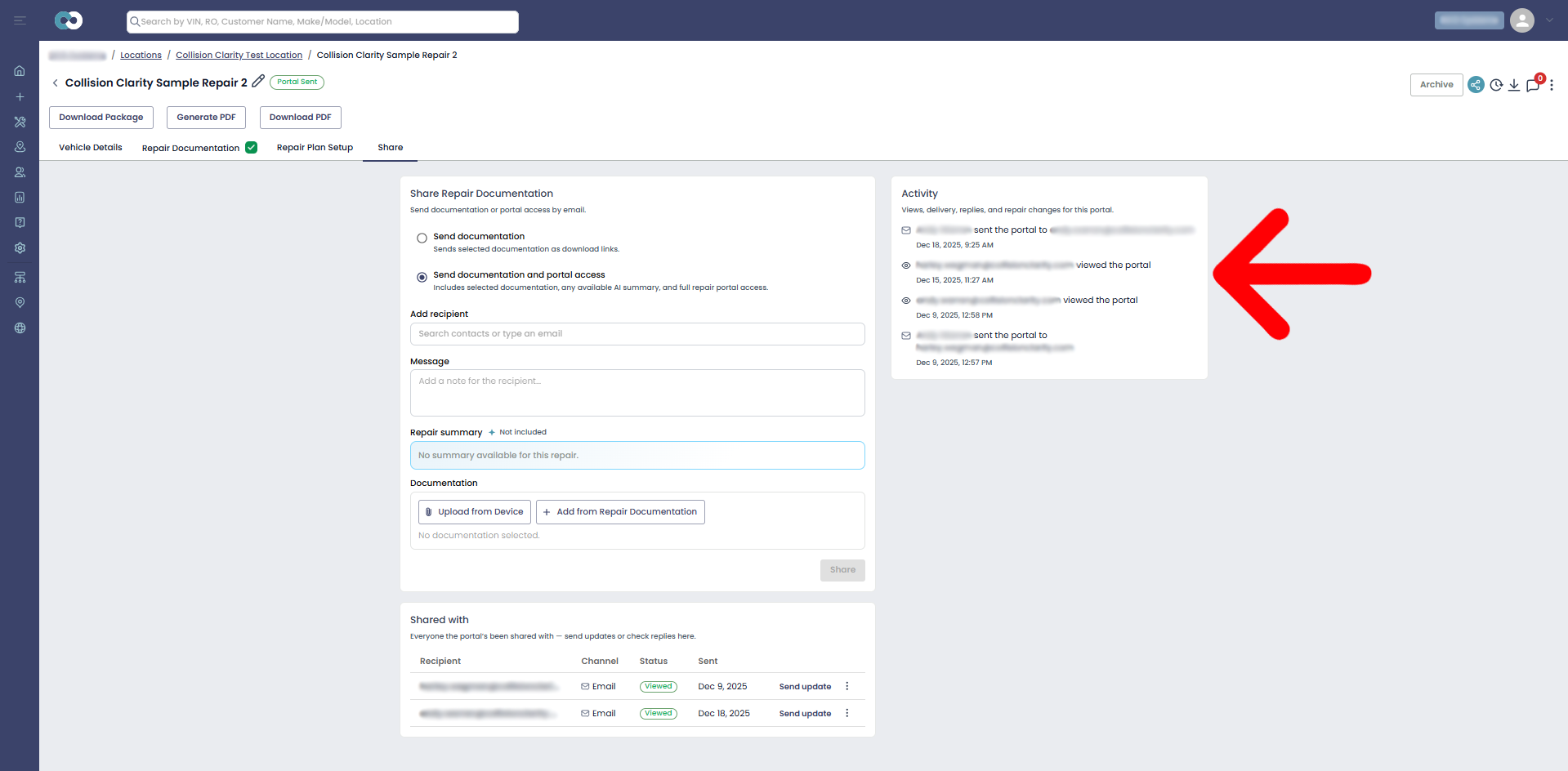
The Activity panel on the right displays a timestamped history of external sharing activity, including:
- Who shared the repair
- Which external recipient received it
- When the portal was viewed
- Delivery and reply activity
- Recorded repair changes
Use this panel to monitor delivery and recipient activity.
Select Send update to email the recipient an updated link.
Use the three-dot menu next to a recipient to copy their share link or revoke their access.
What's next?
If you are following the Quick Start sequence, sharing the approved repair externally completes the sequence.